

Hey, everyone. My name is Shannon and I am a graphic designer and content creator from Chicago, IL. I started Design Dirt as a way to track my progress as a creator and designer. The world of design is vast and can be scary. My goal is that I can hopefully help other designers just starting out to not feel so alone in the creative shark tank we all want to thrive in. Design Dirt is where I will let other’s in on my secrets, tips, tricks, processes on graphic design, illustration, content creation, and whatever else the industry throws my way.


Tech Talk: My Tools for Digital Artwork
Every designer has their own recipe of tech and programs to help make their lives easier…this is mine. Six of my most used tools for hardware and software when creating my artwork.
There’s many upsides to deciding to go digital for an artist; it’s easier to prep for print, in the case of vector artists’ it’s already high res and ready for anything, it saves time having to scan in traditionally made pieces, the list goes on. There’s also some drawbacks to fully taking the plunge into pixel-world and that includes the vast array of tools and technology options to work with. With traditional mediums, there’s brushes and pens, and sure there’s all the colors, but you’re still limited to what you can buy in the finite aisles of the arts & supplies store. It can be eternally paralyzing to the mind when you decide to open the door of endless possibilities with digital medium. Where does one even begin?
One of the most frequently asked questions I receive as a digital artist (and I could safely assume all other digital artists as well) is: What tools do you use? After that, a close second is, what brushes do you use?
I’ve been asked it enough that it warrants taking the time to write a post just for it, so here it is all in one place: the tools I use to create my digital pieces.
1. Wacom Tablet
Just saying ‘Wacom’ by itself can open up a whole can of worms. There’s so many options! From the smart pads or Bamboo models, to the Intuos or Cintiq, the choices can be overwhelming. The choice was made for me when my brother gifted me a Wacom Intuos tablet for my birthday when I was 14. The Intuos model line from Wacom is one that does not have a screen-built into it. To be frank, it is not the simplest task in the world to go from drawing traditionally on paper while watching your hand directly, to drawing on a tablet while looking up at a screen. This shouldn’t be something to discourage you. It takes some getting used to, but in no time it’ll be second nature.
After a few years, I finally had enough in savings to take the dive. I purchased a used Wacom Cintiq 24HD Touch. (The extra $$$ for the touch model was well worth it.) Once I went to the Cintiq, there really wasn’t any going back. Drawing on a Cintiq has more similarities with traditional drawing than using an Intuos. It is a pen display, rather than just a tablet, so it feels more natural looking down at your hand movements than looking up at a screen and away from your hand’s movements. If I had to start over (and wasn’t gifted an Intuos), I would definitely save for the pen display from the beginning instead of using a non-display pen tablet.
2. Adobe Photoshop
It’s kind of just a fact now that Adobe is the industry standard for graphic design. Sure, there’s CorelDraw and other applications of the sort, but nothing has come close (yet) to the power of Adobe. I use Adobe Photoshop for most of my illustration work. The degree of fidelity you get with drawing directly into Photoshop is one of the main reasons for this. I always start with a canvas at least 300dpi, but often draw in 600dpi just in case.
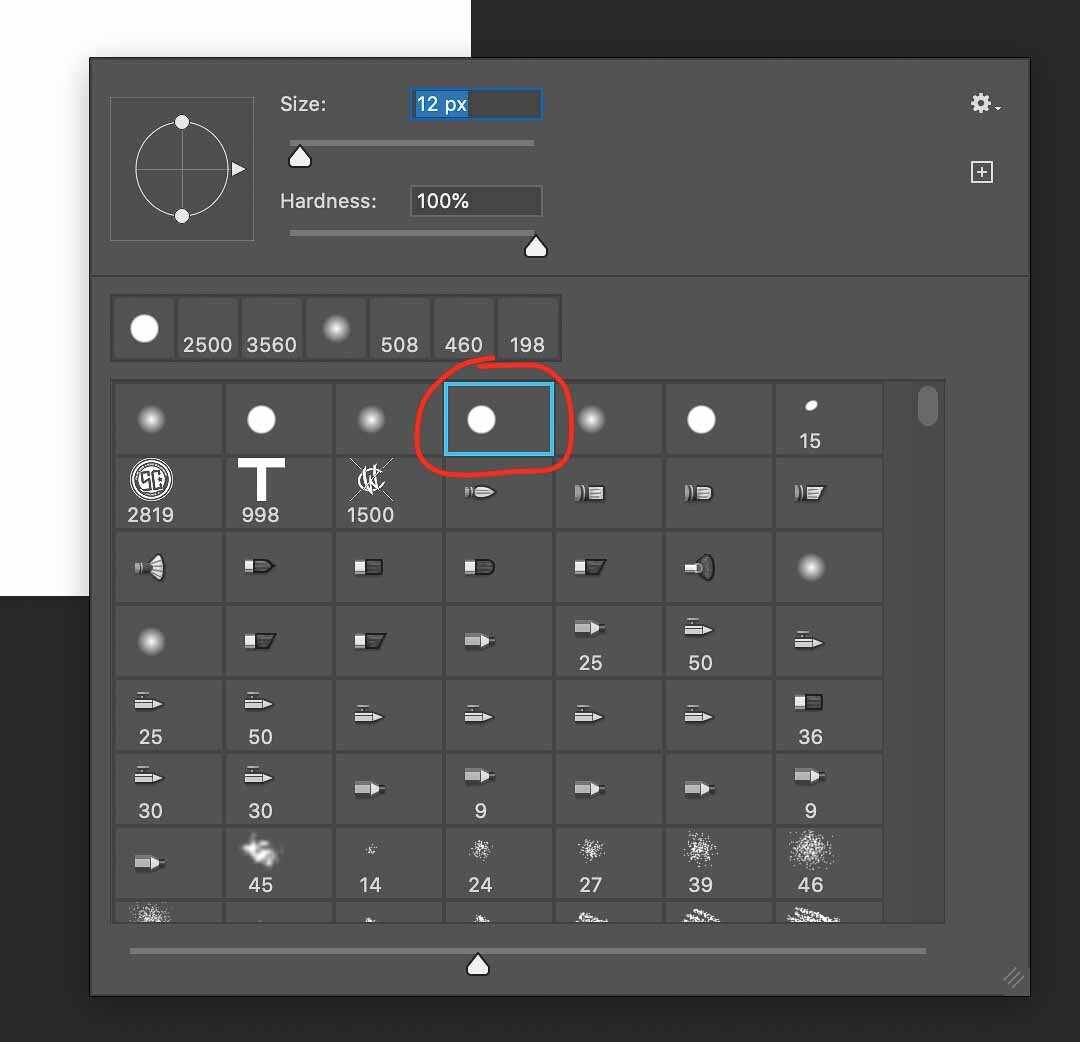
The follow up question I always get after finding out I draw in Photoshop is…what brushes do you use? The answer: The default round brush. Yes, really. It’s all you really need for clean line-work.
3. iPad Pro with Apple Pencil
Adobe may be leading the industry with design software, but the major leader for design hardware is, as always, Apple. The iPad has come a long way since it’s first launch in 2010. What started off as essentially a giant iTouch has evolved into a powerful hand-held designing device. In my personal opinion, I even like the feel of the iPencil better than the Wacom Cintiq stylus. It’s got a nice weight to it that allows for cleaner, more stable strokes. In my perfect world, the iPad would come in 24-27” screen-sizes and be able to run software that can process very high resolution, mass-scale images. Unfortunately, it maxes out currently at 12.9”.
So, why have both the Wacom Cintiq and the iPad Pro? Mobility. The Wacom Cintiq runs through a laptop or desktop computer, which allows me to draw at 600dpi, with dimensions over 100”, with unlimited layers in raster based programs like Photoshop or ProCreate. I can’t take it in the car with me or toss it in a back-pack. Running larger files on an iPad Pro has severely slowed down it’s computing speed, causing frustration when trying to draw. Adobe Illustrator or Adobe Draw has run decently for larger scale pieces, but drawing in vector based programs hasn’t always been my taste.
It all comes down to exactly what I am designing. If it is a sticker design that may only be a few inches print size or a t-shirt design that would be 10”-20”, the iPad Pro has been a lifesaver. Stickers, t-shirts, album covers, beer labels, any small scale print product has come out perfectly on the iPad. It’s the large-scale items like bill-boards, books, posters, etc. where designing it on a laptop with a Cintiq is more beneficial. This bring me to my next item…
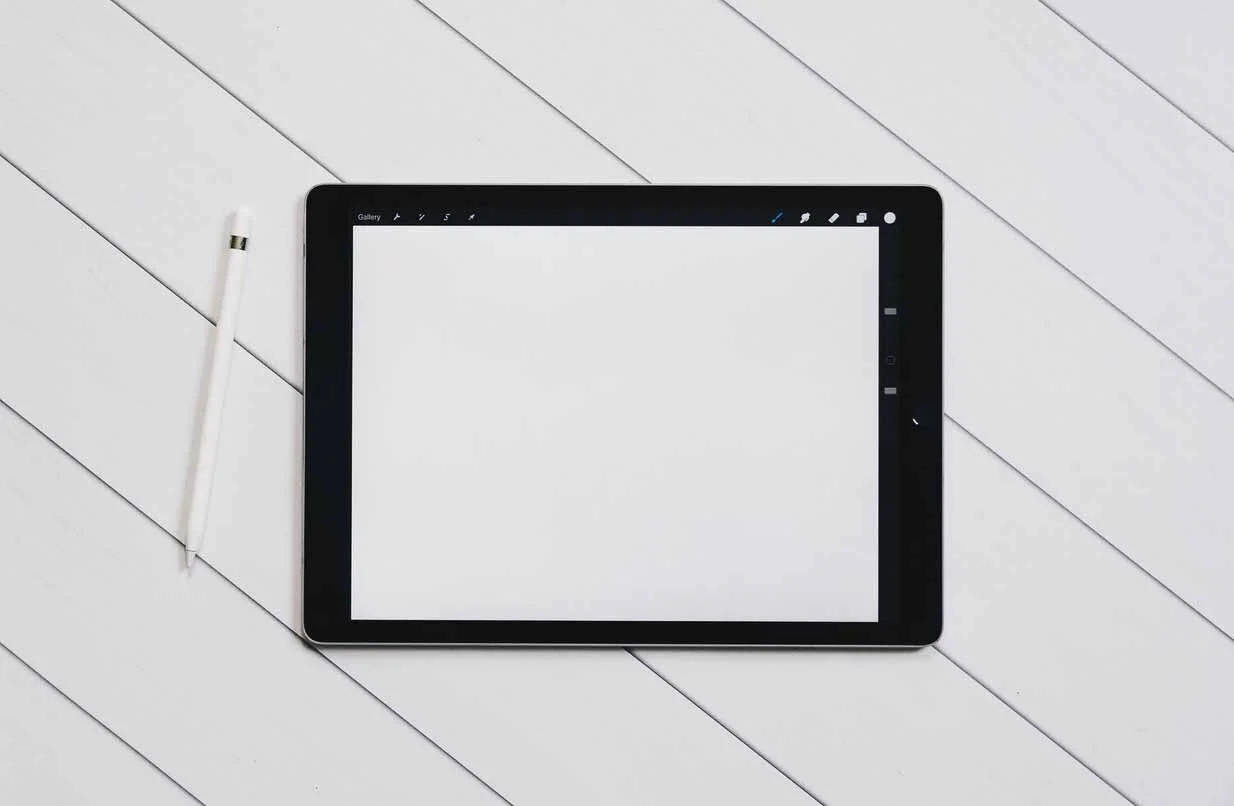
Photo taken by Kelly Sikkema
4. ProCreate
Photoshop is my number 1 program to illustrate in on a desktop or laptop, but number 1 on the iPad is ProCreate. ProCreate allows for 600dpi for a 10” x 10” album cover to have 7-8 layers. This has been enough for my needs for small-scale items, and they even have an export option to save as an Adobe Photoshop file that can be directly opened in Photoshop for further editing. I often design t-shirts and album covers in ProCreate and export to Photoshop for layouts and color separations.
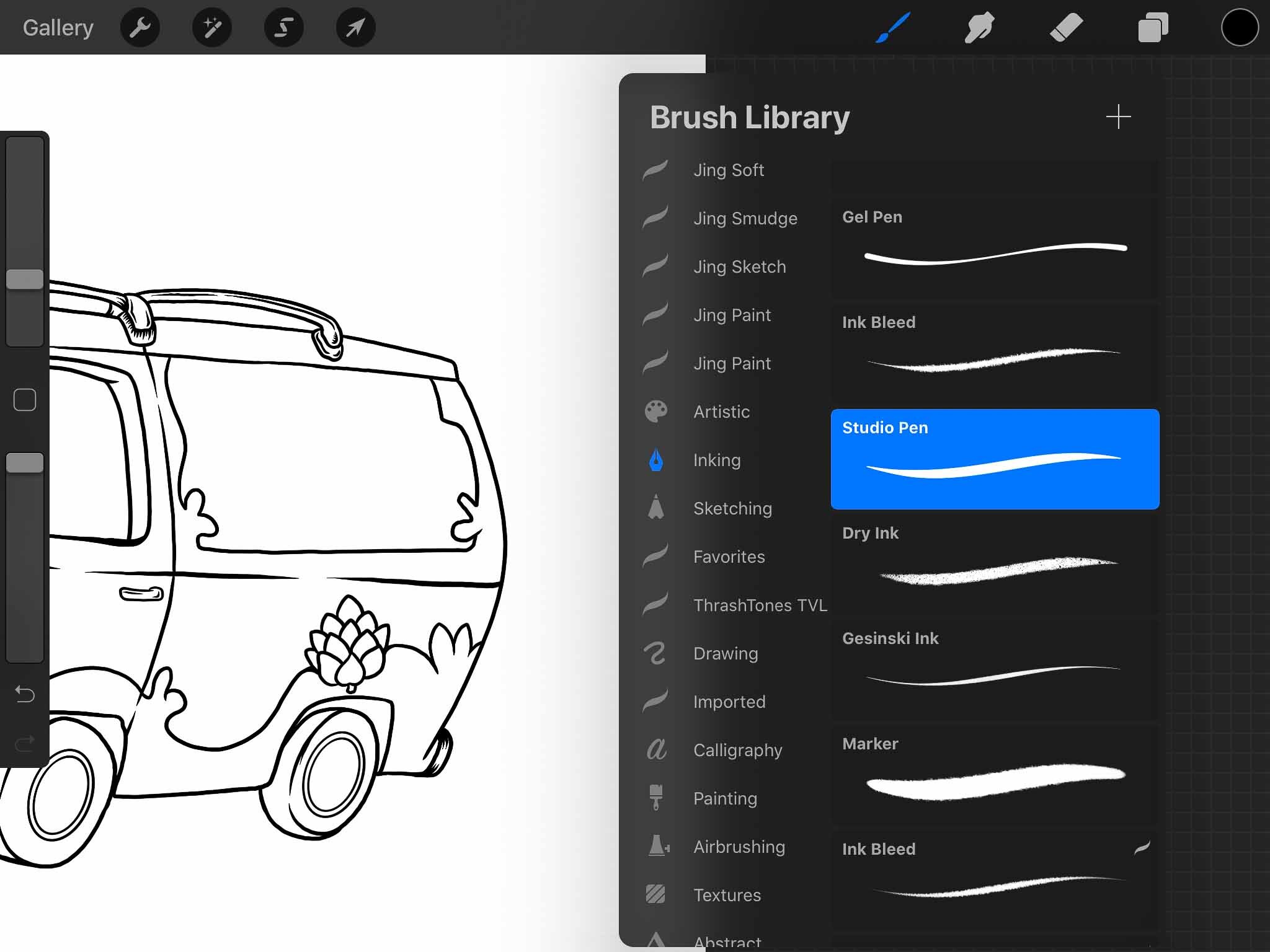
Inside of ProCreate, I use the default studio ink brush. It closely resembles the default round brush in Photoshop and translates nicely if the need occurs to have to continue drawing in a program you didn’t start the project in.
The best reason to use ProCreate? The automatic time-lapse capture. ProCreate has the option to screen-record your process, but only records when you touch the screen or make a stroke with the stylus. It speeds up the video and allows you to export a nicely formatted time-lapse .MP4 of your project. Perfect for those who want to document their processes or upload a speed drawing video to YouTube.
5. Adobe Illustrator
Although Illustrator isn’t my go-to for illustrating, it is the only tool I use for logo designs and layouts. Anything that requires a die-line (packaging, album covers, stickers, etc.) gets laid out in Illustrator. All logo designs should also be vector based so I solely use Illustrator for them from the get-go. And, have you tried to type-set in Photoshop? It isn’t exactly the most convenient. Any project that requires typography that isn’t hand-drawn in gets set up in Illustrator.
Illustrator is also what I use to layout my designs for screen-printing. It allows me to perfectly add in registration marks, notes for the screens, and output all artwork to our printer in halftone dots, which is what is needed for burning screens.
Part of why Adobe is so powerful is it’s ability to cross-work in all of it’s programs. You can import a Photoshop file into Illustrator and keep it linked so you can edit in Photoshop and it will automatically update in Illustrator when you save. It makes it easy as pie to illustrate in Photoshop and then design your text in Illustrator.
6. Amaziograph
Lastly, I use a program called Amaziograph. It is available on iOS, Android, and Windows 10. It is basically a tool to make high resolution mandalas that multiplies what you are drawing in real-time. I used to draw all mandalas with paper and ink by hand, spending hours making each panel relatively the same. Amaziograph is not only a time-saver drawing wise, but also has the perk of already being digital so there’s no pesky scanning and re-touching.

Amaziographs UI on iOS for iPad Pro

A mandala I drew in full rotational symmetry mode.
There you have it…six of my most used tools for the trade. Everybody has their own recipe of tech and software to get the job done in their style. If you feel up to it, share what tools you love to use most in the comments below.
Search Posts
-
Apparel and Printing
- Apr 20, 2022 How to Create Artwork for T-Shirts: A Guide for Artists Designing for Screen Print Apr 20, 2022
- Nov 2, 2020 From iPad to Shirt: Halloween Edition Ft. Goof Nov 2, 2020
-
Art Processes
- Apr 20, 2022 How to Create Artwork for T-Shirts: A Guide for Artists Designing for Screen Print Apr 20, 2022
- Nov 2, 2020 From iPad to Shirt: Halloween Edition Ft. Goof Nov 2, 2020
- Sep 2, 2020 Tech Talk: My Tools for Digital Artwork Sep 2, 2020
- Jun 29, 2020 The Process Behind the Label: Designing My First Beer Can Jun 29, 2020
- May 20, 2018 The Process of Designing Posters May 20, 2018
-
Product Reviews
- Sep 2, 2020 Tech Talk: My Tools for Digital Artwork Sep 2, 2020
-
Technology
- Apr 20, 2022 How to Create Artwork for T-Shirts: A Guide for Artists Designing for Screen Print Apr 20, 2022
- Sep 2, 2020 Tech Talk: My Tools for Digital Artwork Sep 2, 2020
Are you an artist that needs to create artwork for screen printed t-shirts? Use this guide to help you set up your artwork files the right way. Explains screen-printing basics and how the method affects your artwork creation.